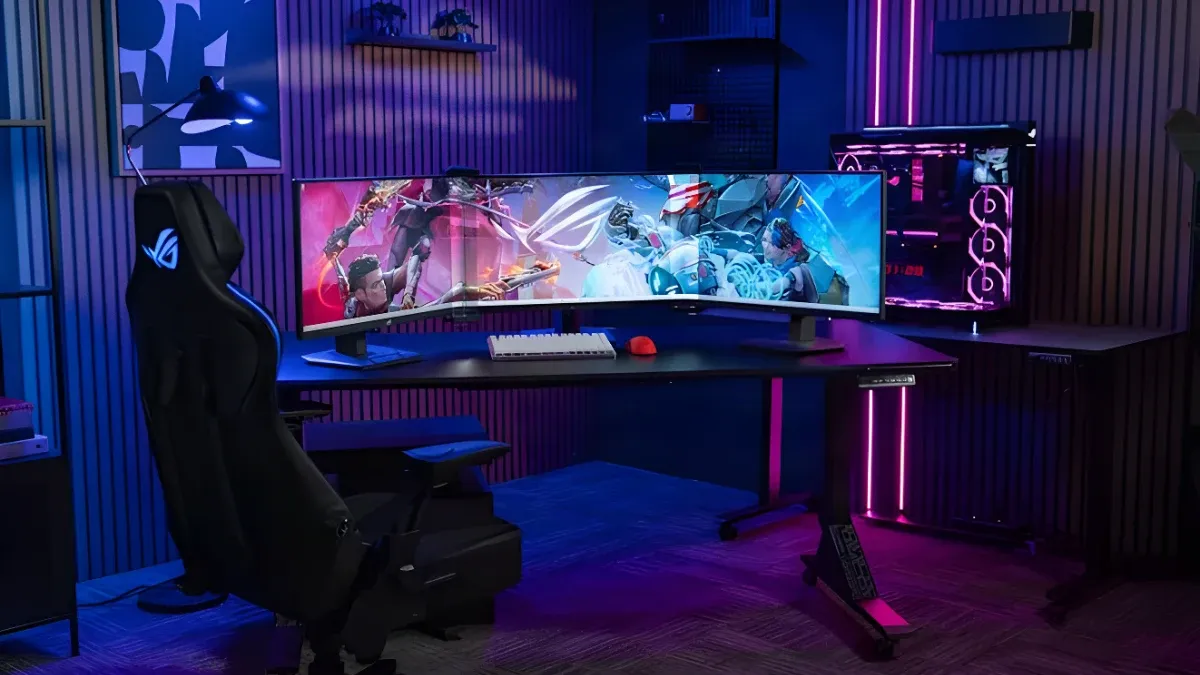
Curved triple-monitor setup on a sleek desk with RGB lighting, gaming chair, and custom PC tower.
Watch enough movies and you might start to believe that a multi-monitor setup is something exotic—the domain of genius hackers, paranoid supervillains, and hyper-vigilant day-traders.
The truth is that people from all walks of life use multi-monitor setups. It's one of the most practical upgrades you can make to a PC, and it's easy to set up and use. Gamers keep digital worlds front and center while Discord, a map, and a guide sit one glance away. Streamers read chat live and monitor their output without breaking immersion. Colorists keep footage in view while every scope and panel lives on a second screen. Even for juggling work chat, email, and browser windows alongside your primary work app, a multi-monitor setup boosts productivity significantly.
There's no single “right” number of screens—only a setup that fits what you actually do. Here are five ways to build one, from the two-monitor classic to a rig that fits in your backpack.
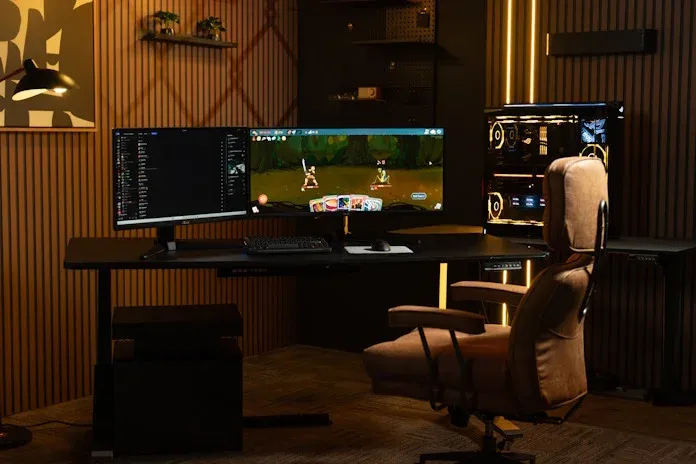
The best dual-monitor setup for gaming places two displays side-by-side: the game on the main monitor and the second screen off to the side handling everything that used to force an alt-tab.
It's the first thing most people picture when they hear “multi-monitor,” and honestly, it's the sweet spot for many gamers. The game stays front and center where it needs to be, while the second monitor does real work: Discord, a map, a guide, or a show playing during a fishing mini-game.
Many people prefer matched monitors in resolution and color performance, but you don't have to run identical models. Plenty deliberately mix and match, picking the second screen for what it will actually show. A bigger, cheaper panel for a spreadsheet works perfectly as a second screen. Or try an ultrawide display in the center for extra-immersive gameplay, using a standard 16:9 monitor off to the side for chat and browsing.
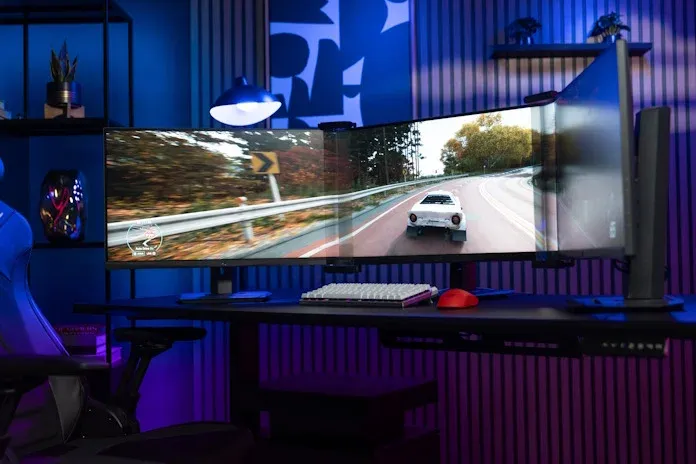
A triple-monitor setup stretches a single game across three displays, filling your field of view for immersion a single screen can't reach. This setup is for sim racers and anyone chasing the most complete gaming view available.
It requires more work on the software side to get running, but NVIDIA Surround and AMD Eyefinity make it straightforward. Configure surround mode in your GPU control panel, run a compatible game, and it fills all three screens.
Thick bezels used to hinder triple-monitor gaming setups significantly, but today's gaming monitors ship with incredibly slim bezels. If even that's too distracting, the ROG Bezel Kit closes the remaining gaps between displays.
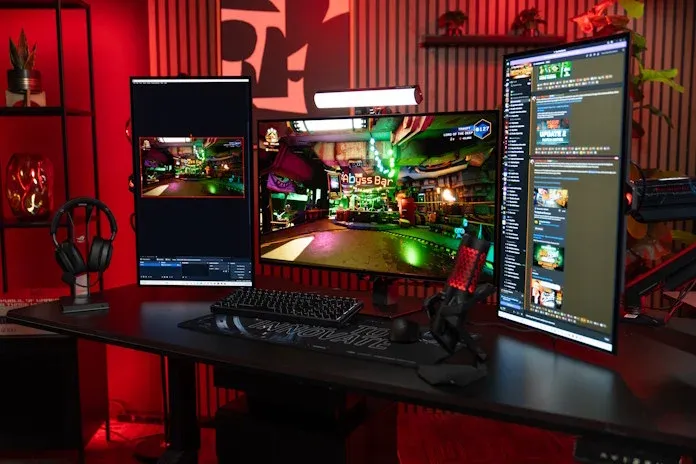
The best streaming setup uses three monitors: a large central display for the game, with side monitors in portrait orientation running streaming software and chat.
If you're both a gamer and streamer, you have significant information that needs constant visibility. Maintaining stream quality, staying connected with your audience, and actually playing the game leaves little room for alt-tabbing. A three-monitor setup solves this. Put a larger display in the center for your game—a 32-inch ROG OLED gaming monitor or ultrawide works well—with two smaller displays on the sides. One runs your streaming software, the other displays chat, letting you see your audience live without taking focus from gameplay.
The portrait orientation on side monitors is the quiet win here. Chat is tall, not wide, so vertical layout fits the content perfectly and saves desk space. A top-to-bottom glance replaces constant scrolling.
One practical note: three stands on a desk can feel crowded. Monitor arms position side displays exactly where you want them while keeping your desktop clear.
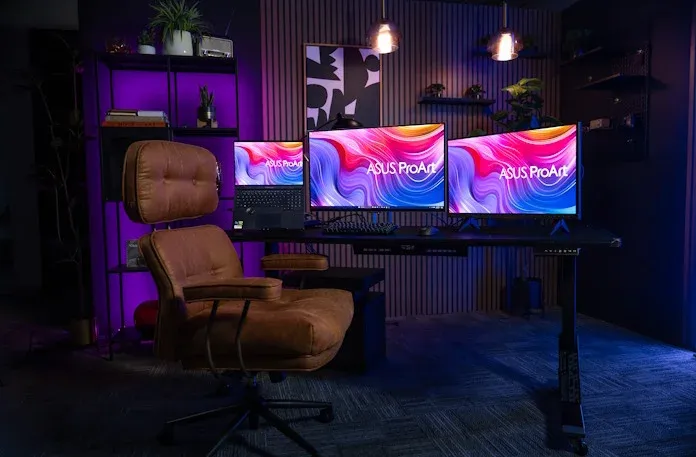
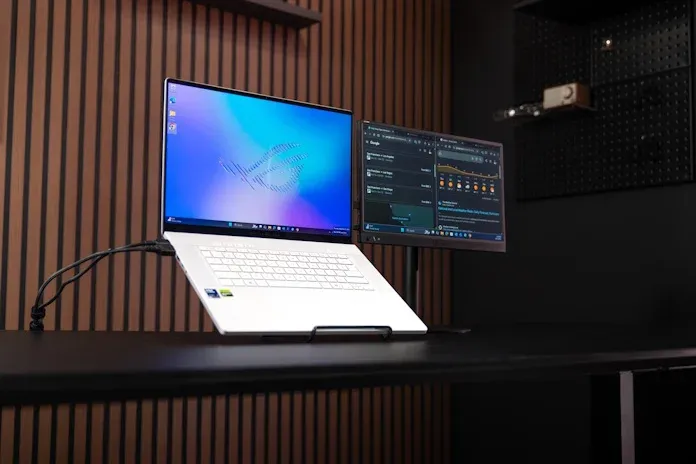
A dual-monitor setup with a laptop as the third surface works for professionals and students moving between a home desk, client sites, and classrooms.
Modern schedules have people on the move more than ever, but there's no reason to give up multi-monitor productivity. A slim, lightweight portable monitor slips into your laptop bag as a second screen ready anywhere you go—an office cubicle, coffee shop, or hotel room. These displays add barely any weight or bulk yet provide a perfectly capable second screen.
For added comfort, grab a stand for the portable monitor. Travel-ready options position the screen at proper viewing angles, and ergonomic benefits accumulate over a full day of work or study.
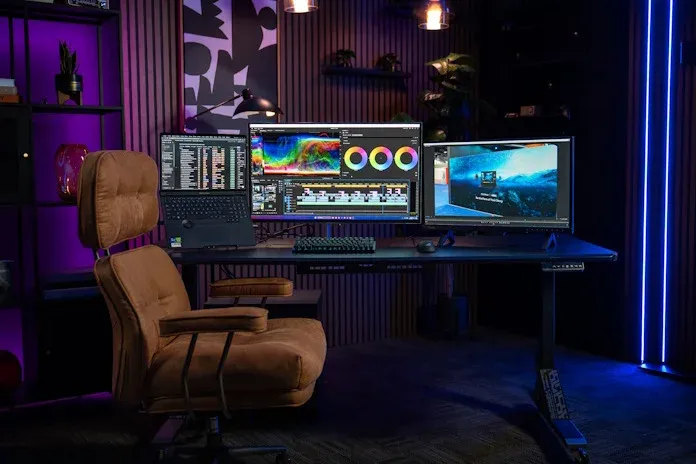
For video editing and creative work, a large creator display for the project itself, with a second monitor for scopes and panels, solves screen-space constraints immediately.
Creative apps are demanding. Color grading a video requires bouncing between panels, scopes, and dialog boxes. Add a browser window and team chat, and barely any room remains to actually view the video being graded. A dedicated second display fixes this instantly—footage stays in view while everything else lives off to the side, in sight but never in the way.
This applies beyond video editing. Basically every creative workflow today requires multitasking, even if the second screen exists only for team communication. Most popular creative apps now have built-in multi-monitor support. For architecture, product design, game development, and more, a second monitor makes clear sense.
Choosing between one large ultrawide display and multiple monitors comes down to what you optimize for: a seamless single pane for immersion, or separate screens for multitasking, mixed orientations, and more total resolution per dollar.
An ultrawide excels for specific jobs, offering one continuous curved image and wide field of view without bezels, while requiring only one purchase, stand, and cable. If immersion in a single window is your main need, an ultrawide is often the right answer.
Multiple monitors trade that seamless pane for flexibility. You can mix portrait and landscape, dedicate whole screens to chat, scopes, or spreadsheets, and two or three panels usually deliver more total resolution for the money. Windows 11 enables easy positioning of multiple apps on one screen, but there's something genuinely convenient about devoting one screen to one app. For streaming, creator, and productivity setups, that flexibility is the whole point.
Before you buy, check three things.
Connectivity. Count the display outputs on your GPU or laptop and ensure they cover every screen you want to run. HDMI, DisplayPort, and USB-C with display support all work, but the number of ports is a hard limit. (Daisy-chaining through USB Type-C is an option, but requires up-front planning.)
Stands and arms. Two or three monitors on stock stands can fight over desk space and viewing angles. For a multi-monitor rig, seek out displays with wide-ranging ergonomic adjustments at minimum. For more control, grab one or more monitor arms. Monitor arms claim almost no desktop space, give you far more freedom for positioning displays, and can help with cable management to keep your setup tidy. A good monitor arm can be the difference between a setup you love and one you have to fight.
Bezels. For triple-monitor surround setups, thick display bezels can hinder immersion. Slim-bezel panels get you most of the way there, and a bezel-free kit closes the remaining gap.
Gamers, streamers, creators, students, and traveling professionals all solve the same problem: one screen isn't enough. Multi-monitor setups give each part of what you do room to simply exist, always in sight when you need it.