Adobe Expands Interactive Editing in ChatGPT Plugin
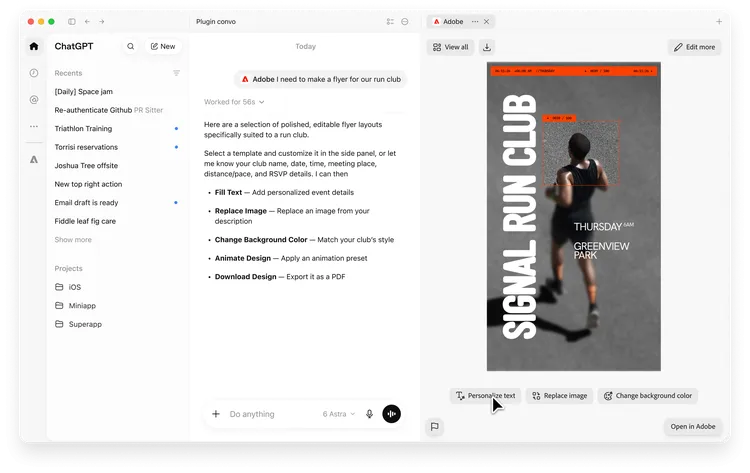
Adobe is introducing new interactive editing experiences in its ChatGPT plugin, announced alongside OpenAI's DevDay 2026. The updates give users hands-on control over images, designs, and PDFs through side panels in ChatGPT.
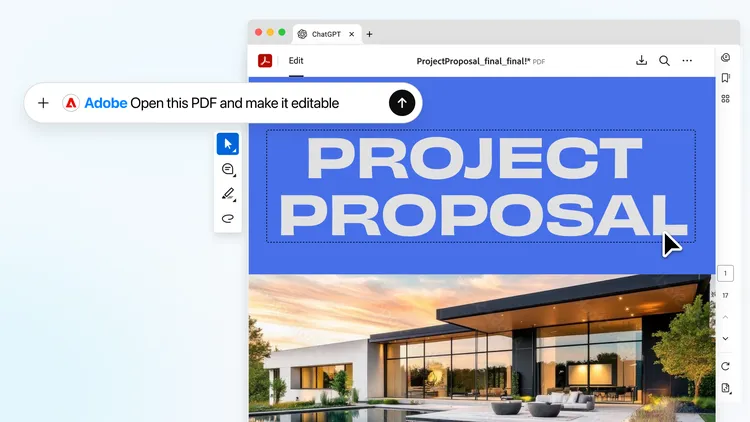
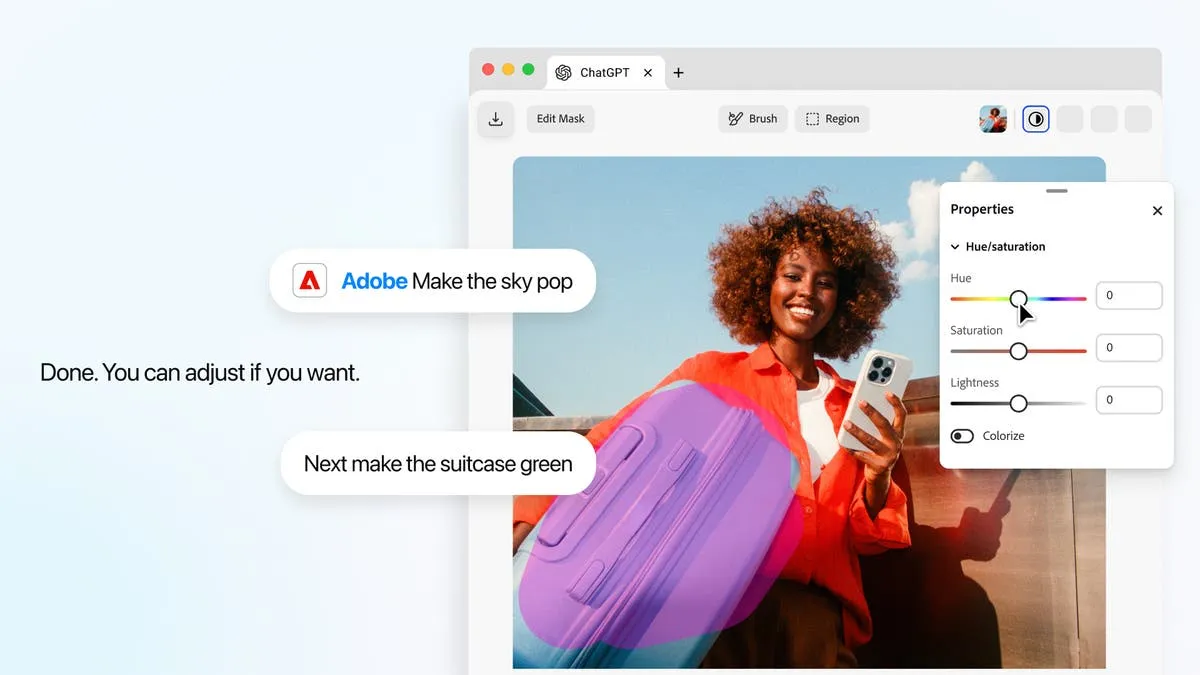
Users can now select part of an image in the interactive editor and ask ChatGPT to use the Adobe plugin to make changes, then fine-tune the result with new precision controls. Edits stay in context as you move between the interactive editor and conversation. PDFs can be opened to revise text or highlight passages, with that document context sent back to ChatGPT to continue tasks.
The new image editor, powered by Photoshop and Adobe Express, dynamically surfaces controls based on the type of edit. Request a color change and color controls appear scoped to that selection. The PDF editor lets you make changes directly in your document, moving easily from describing the outcome you want to refining it yourself.
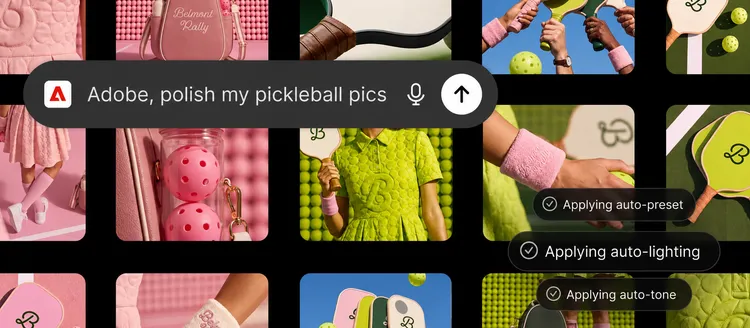
The interactive editors combine conversational editing with precise controls over details. Make targeted adjustments by selecting an object or brushing over an area, then fine-tune adjustments and effects such as hue, saturation, and contrast with dynamic sliders.
In a practical example: editing a lifestyle photo of a latte for social media, you could open the image in the side panel, select a stray napkin with the brush tool, and request “remove the napkin from the table.” Once removed, you can continue refining—focusing on the cup to adjust its brightness and contrast, with Adobe dynamically surfacing the relevant sliders.
You don't have to choose between prompting and hands-on editing. Your requests in ChatGPT shape the editing experience, while adjustments in the interactive editor flow back into the conversation as context. Chat and editor stay in sync, letting you move between describing what you want and editing the content yourself without re-explaining or re-uploading.
You can also work hands-on with PDFs in ChatGPT using Acrobat tools within the Adobe plugin. Open your document in the side panel to revise text or highlight passages without moving into a separate workspace.
You can use selections in a PDF to guide your conversation. Reviewing a freelance contract, for example, you could highlight a paragraph about payment terms and ask ChatGPT to use the Adobe plugin to highlight other sections about payments or invoicing. Acrobat's highlight tool marks those passages in the document, letting you review related terms together and check consistency.
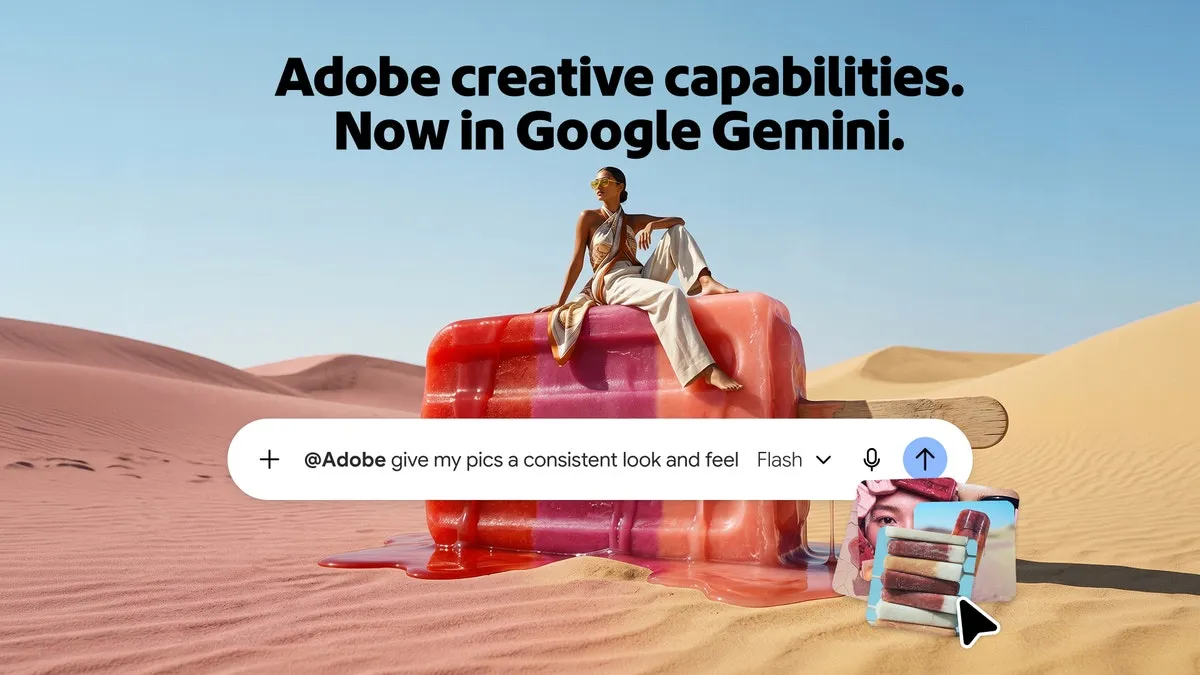
Adobe has also unified its creative and productivity tools into a single plugin experience across ChatGPT, Claude, and Slack, allowing users to move across creative and document workflows without switching between plugins.
The updates to the Adobe plugin in ChatGPT will roll out globally today on ChatGPT web and app.